Container Manager
Deploy and operate rootless Podman containers, Compose stacks, volumes, registries, and domain proxies.
Rootless containers for hosting accounts
Container Manager lets end users deploy and operate Podman containers and Compose stacks from the panel — with domain proxying, volumes, registries, and resource isolation built in.
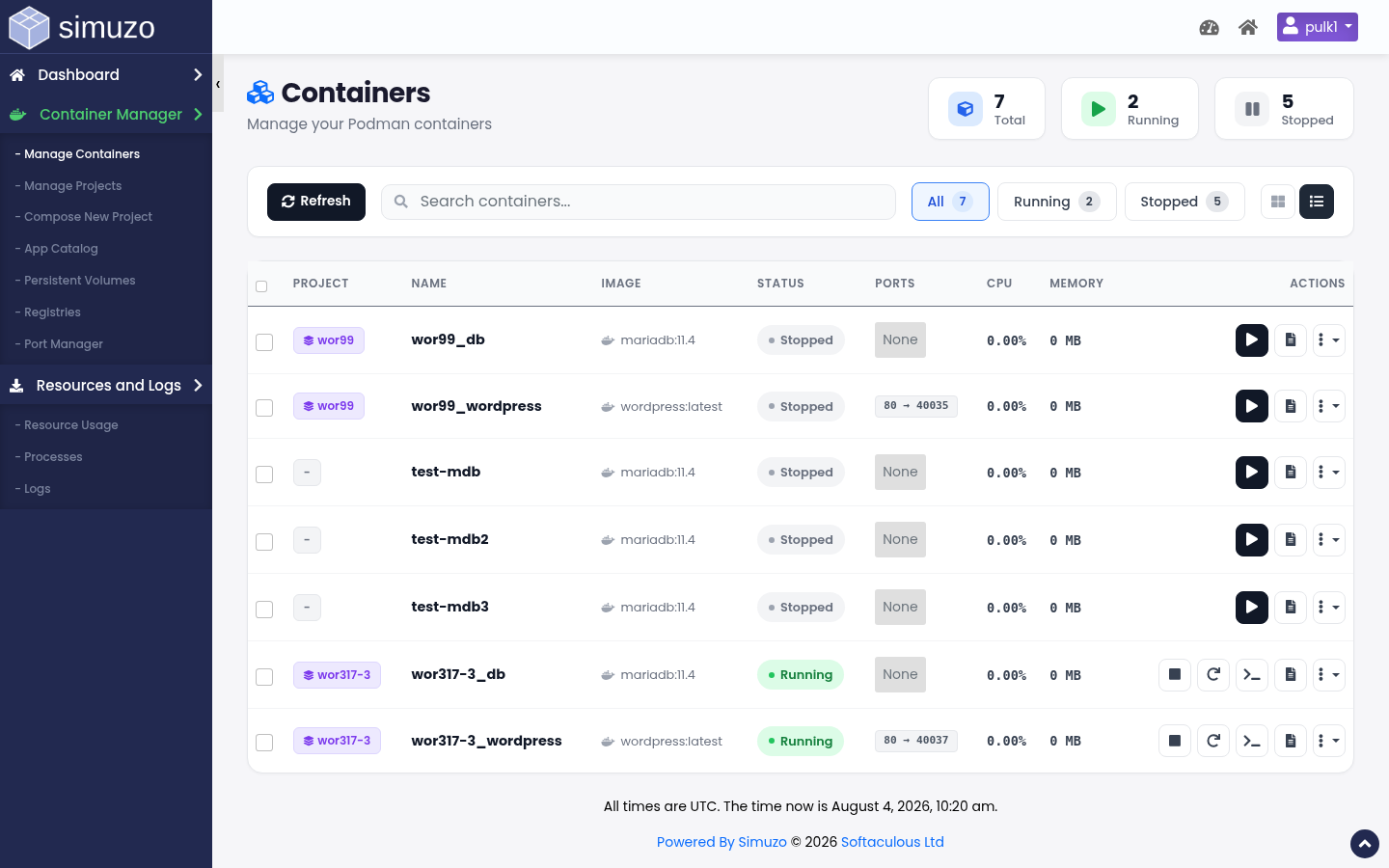 Container list with status, metrics, and lifecycle actions.
What you can do
Manage Containers
Start, stop, restart, delete; view logs, stats, ports, and run terminal commands.
Compose Projects
Define multi-service stacks with a visual or YAML editor and deploy them as a unit.
App Catalog
Start from curated templates (WordPress, databases, apps) instead of writing YAML from scratch.
Volumes
Create named volumes and inspect bind mounts so data survives container recreation.
Registries
Connect Docker Hub or private registries and test authentication before deploy.
Port Manager
Map container ports to host ports and reverse-proxy them onto your domains/paths.
How it fits together
- Pick a path — App Catalog template, Compose project, or single-container deploy.
- Configure — image, environment, volumes, restart policy, and ports.
- Publish — allocate a host port and optionally proxy it to a domain + path.
- Operate — use Manage Containers for lifecycle, logs, stats, and troubleshooting.
Menu map in the panel
| Panel menu | Docs page | Purpose |
|---|---|---|
| Manage Containers | Manage Containers | Day-to-day operations on running/stopped containers |
| Manage Projects | Compose Projects | List, start/stop, edit, delete compose stacks |
| Compose New Project | Compose Projects | Create/edit compose YAML or visual services |
| App Catalog | App Catalog | Template library |
| Persistent Volumes | Volumes | Named volumes & bind mounts |
| Registries | Registries | Image registry credentials |
| Port Manager | Port Manager | Host ports and domain proxies |
Isolation & limits
- Containers run as the account user (rootless Podman), not as host root.
- CPU, memory, IO, and process limits still apply via cGroups assigned to the user.
- Admins can set max containers per user and a server-wide total.
- With SimuzoFS enabled, container processes also run inside the user jail view.
Related topics
- Resource Usage — monitor CPU/RAM/IO while containers run
- Processes — inspect account processes
- Admin Settings — enable/disable Podman and container caps