Resource Limits
Configure cGroup limits for CPU, memory, IO, and process management.
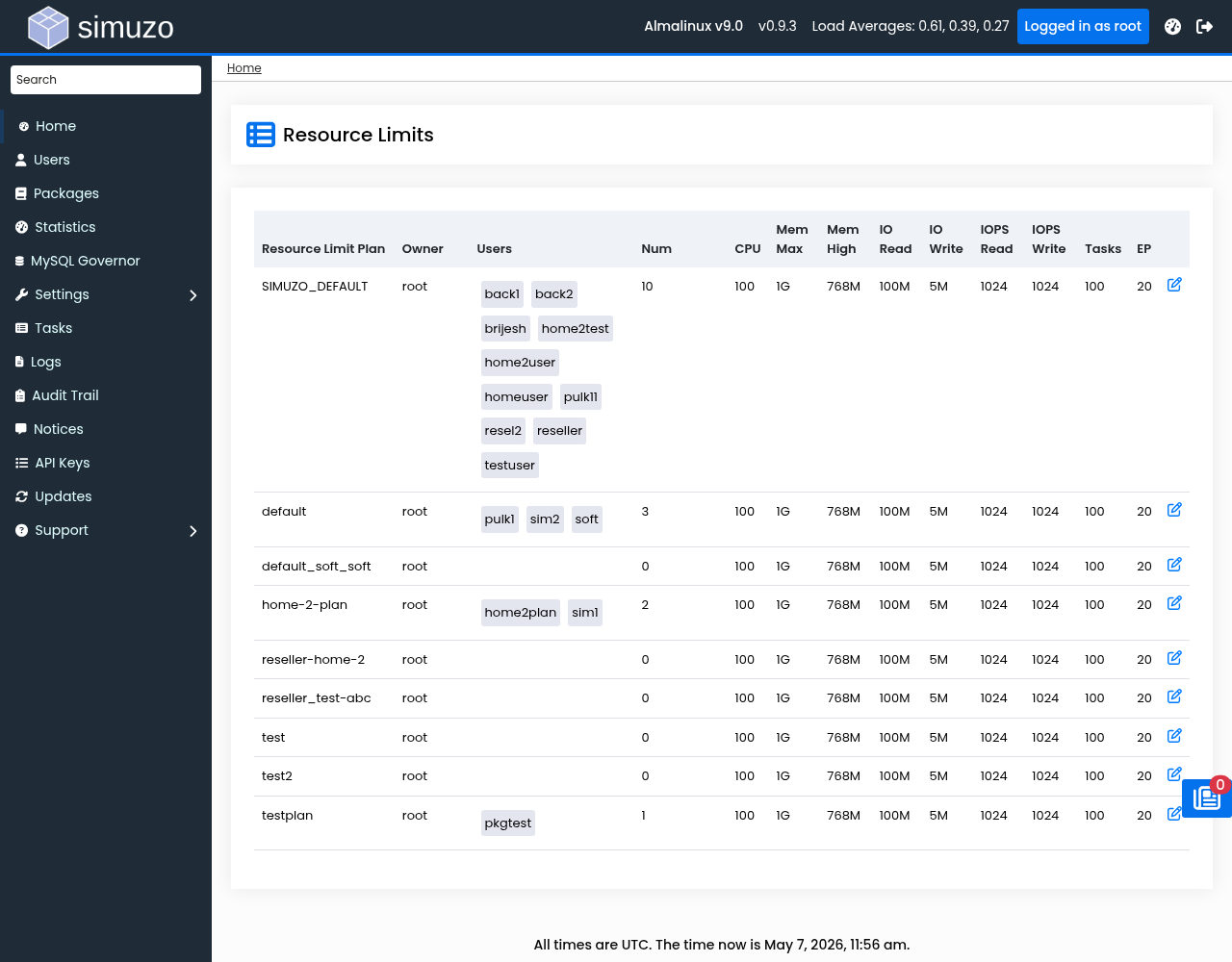 Configuring global and plan-based resource limits using cGroups v2.
Understanding cGroups v2
Simuzo uses Linux cgroups v2 (control groups) for resource management. cGroups v2 provides a unified hierarchy for managing system resources with improved isolation and accounting.
cGroups Hierarchy
/sys/fs/cgroup/simuzo/          # Main resource limits
/sys/fs/cgroup/simuzo-db/       # Database-specific limits
Resource Controllers
| Controller | File | Description |
|---|---|---|
| CPU | cpu.max | CPU time quota (percentage) |
| Memory | memory.max | Maximum memory allocation |
| Memory High | memory.high | Throttling threshold |
| IO Read | io.max | Read bandwidth and IOPS |
| IO Write | io.max | Write bandwidth and IOPS |
| PIDs | pids.max | Maximum process count |
Accessing Resource Limits
Navigate to Settings → Resource Limits in the Admin Panel.
Enabling cGroups v2
Check System Support
Verify cgroups v2 is available:
grep cgroup2 /proc/filesystemsEnable in Simuzo
Click Enable cGroups v2 if not already enabled.
Monitor Progress
View task logs for the enablement process.
- Linux kernel 4.18+
- cgroups v2 filesystem mounted
- Admin access only
Limit Types
CPU Quota
Limits the percentage of CPU time a user can consume:
| Setting | Range | Default | Description |
|---|---|---|---|
| CPU Quota | 25-100% | 100% | Percentage of total CPU |
Formula: CPU Quota = quota microseconds / period microseconds * 100
Example: 25% = 25000 / 100000
Memory Limits
| Setting | Minimum | Description |
|---|---|---|
| Memory Max | 128M | Hard limit - process killed if exceeded |
| Memory High | 128M | Soft limit - throttling begins here |
Set Memory High below Memory Max to enable graceful throttling.
IO Bandwidth
| Setting | Minimum | Format | Description |
|---|---|---|---|
| IO Read Bandwidth | 256K | Value + suffix | Maximum read speed |
| IO Write Bandwidth | 256K | Value + suffix | Maximum write speed |
Supported suffixes: K (Kilobytes), M (Megabytes), G (Gigabytes), T (Terabytes)
IOPS Limits
| Setting | Minimum | Description |
|---|---|---|
| IOPS Read Max | 256 | Read operations per second |
| IOPS Write Max | 256 | Write operations per second |
Process Limits
| Setting | Minimum | Description |
|---|---|---|
| Tasks Max | 10 | Maximum concurrent background tasks |
| Entry Processes | 1 | Maximum concurrent connections (EP) |
Plan-Based Limits
Resource limits can be assigned based on hosting plans:
Default Plan (SIMUZO_DEFAULT)
Fallback limits applied when no custom or plan limits exist.
Custom Plans
Create plan-specific limits in the panel software (Webuzo, Plesk, cPanel).
Viewing Current Limits
Check active limits for a user:
# View CPU limits
cat /sys/fs/cgroup/simuzo/{username}/cpu.max

# View memory limits
cat /sys/fs/cgroup/simuzo/{username}/memory.max
cat /sys/fs/cgroup/simuzo/{username}/memory.high

# View IO limits
cat /sys/fs/cgroup/simuzo/{username}/io.max

# View PID limits
cat /sys/fs/cgroup/simuzo/{username}/pids.max
CLI Management
Manage resource limits via CLI:
# Reload configuration
wcli --reload

# Enable cgroups v2
wcli --enable-cgroups-v2
Troubleshooting
cGroups v2 Not Available
- Check kernel version:
uname -r - Verify cgroups mounted:
mount | grep cgroup - Enable in GRUB if needed
Limits Not Applied
- Check user cgroup exists:
ls /sys/fs/cgroup/simuzo/ - Verify limits in Simuzo settings
- Check logs:
/var/simuzo/logs/simuzo.log
Related Topics
- User Management — Assign limits to users
- Statistics — Monitor resource usage
- Resource Defaults — Default limit values