Manage Containers
Day-to-day container lifecycle, logs, stats, ports, and terminal operations.
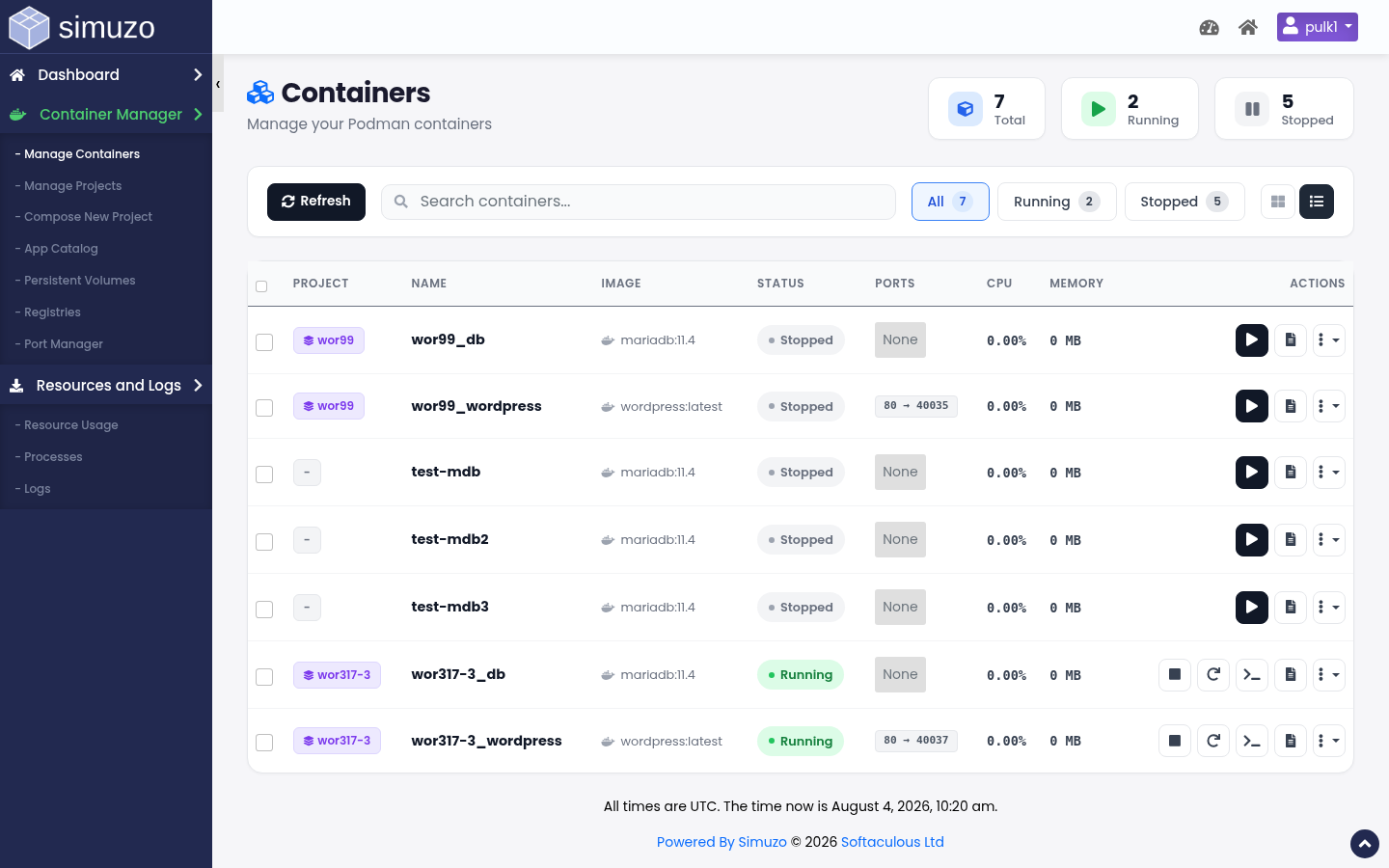 Grid/list view of containers with filters and quick actions.
Open Manage Containers
In the end-user panel go to Container Manager → Manage Containers (act=containers).
Overview bar
At the top you typically see counts for:
- Running — currently active containers
- Stopped — not running
- Conflicted — configuration/port conflicts needing attention
- Total — all containers for the account
Find and filter
- Search by name/image
- Filter by running / stopped / conflicted
- Switch between card grid and table view
Lifecycle actions
| Action | What it does |
|---|---|
| Start | Starts a stopped container |
| Stop | Gracefully stops a running container |
| Restart | Stop then start (useful after config changes applied outside) |
| Delete | Removes the container (and ephemeral filesystem data) |
Bulk actions are available when multiple containers are selected.
Logs
- Open the container actions menu
- Choose Logs
- Review recent stdout/stderr (commonly last ~200 lines)
Use logs first when a container exits immediately or health checks fail.
Live stats
Stats show per-container CPU, memory, and network activity for running containers. This complements account-wide charts in Resource Usage.
Ports on a container
From a container you can open the ports modal to:
- See ports the image exposes
- Map a container port → allocated host port
- Attach a proxy domain + relative path (HTTP/HTTPS)
Host ports are allocated from the server pool — you do not pick arbitrary privileged ports. For account-wide management, use Port Manager.
Terminal / exec
When enabled for a running container, Terminal runs a command inside the container namespace (for example ls, package checks, or app CLI tools). Prefer non-interactive diagnostics; long-lived shells may be limited by policy.
Typical operational workflow
Deploy
From Catalog or Compose, create the stack. Wait until status is Running.
Publish
Confirm port mappings / domain proxy. Open the site URL.
Observe
Watch logs and stats after traffic arrives. Check Resource Usage if limits are tight.
Change safely
Update compose, redeploy, keep volumes attached. Avoid delete unless the app is disposable.
Troubleshooting
| Symptom | What to check |
|---|---|
| Won't start | Logs, image pull/auth, missing env vars, port conflicts |
| Conflicted badge | Duplicate domain/path proxy or stale port mapping |
| Site 502/timeout | Container not listening on mapped port; proxy path wrong |
| OOM / killed | Memory limit in Resource Usage; reduce app cache or raise plan limits |